- —You must provide 1 to 10 screenshots per supported device resolution to pass Apple's submission checks.
- —Integrating Fastlane
snapshotwith XCUITest eliminates manual export work across device sizes. - —Generating localized assets programmatically increases global app conversion rates significantly.
- —Android deployment pipelines use Fastlane
screengrabconnected to Espresso tests for identical automation benefits. - —Tools like StoreManager automate localization metadata across 35+ languages directly inside App Store Connect — no CLI required.
- —Automated workflows guarantee compliance with strict 2026 pixel resolution requirements.
Key Takeaways
Capturing 10 marketing screenshots across 3 iOS devices and 35 languages equals 1,050 image files per update. Manually creating these assets drains velocity and introduces formatting errors. An automated pipeline reclaims engineering hours and guarantees perfectly formatted metadata for every release.
How many screenshots are required for app store?
Apple requires 1 to 10 screenshots per device resolution for iOS apps in 2026. You must submit these images for the largest sizes in supported device families. App Store Connect enforces strict validation; an incomplete set blocks your submission completely.
According to Apple's product page guidelines, the first one to three screenshots appear in search results when no app preview is available. Successful developers provide up to 10 high-quality images to communicate core features and maximize conversion.
How to generate screenshots for app store submission?
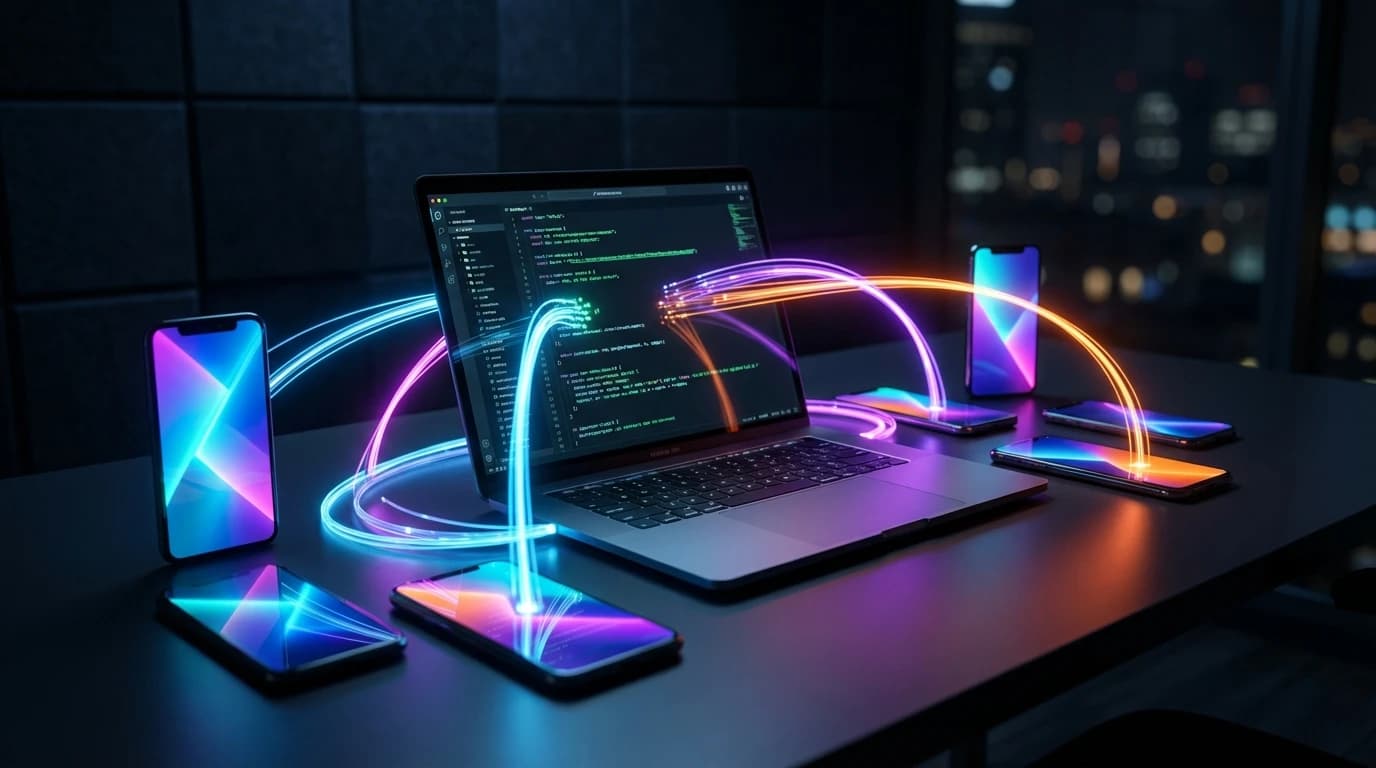
You can generate screenshots automatically using UI testing frameworks and command-line tools. This workflow forces your testing suite to navigate the app, trigger desired UI states, and capture screen data directly onto the CI/CD runner.
Using XCUITest scripts for iOS (or Espresso for Android), pipelines simulate user interactions, pause at critical views, and invoke capture commands. The Fastlane snapshot documentation illustrates the scale: supporting 20 languages across 6 devices with 5 screenshots each means 600 images per update — a task that is only practical through automation.

What is the best tool to automate app screenshots in 2026?
The best tool to automate app store screenshots in 2026 depends on your CI/CD stack and how much setup you want to manage. Here is how the major screenshot automation tools compare:
| Tool | Platform | Automation Method | Localization Support | CI/CD Integration |
|---|---|---|---|---|
| Fastlane snapshot | iOS | XCUITest | Native (Snapfile locales) | Excellent (CLI-first) |
| Fastlane screengrab | Android | Espresso | Native (locales param) | Excellent (CLI-first) |
| StoreManager | iOS (ASC) | Chrome extension | 35+ languages via Gemini AI | No CI needed |
| Xcode Cloud | iOS only | XCTest Plans | Manual locale config | Apple-only CI |
| Firebase Test Lab | Android | Robo/Espresso | Per-locale test runs | GCP-integrated |
For teams with existing CI/CD pipelines, Fastlane remains a strong choice because it handles both iOS and Android within a single Ruby-based configuration. For teams that want to skip CLI setup entirely, StoreManager works as a Chrome extension overlay directly inside App Store Connect — no terminal, no API keys, no CI/CD configuration required.
StoreManager vs Fastlane: choosing the right approach
Both Fastlane and StoreManager solve the localization problem, but they approach it differently. Your choice depends on your team size, technical comfort, and workflow preferences.
Fastlane is the industry standard for CI/CD-based screenshot automation. It requires Ruby installation, Xcode CLI tools, a configured Snapfile, and XCUITest targets. Setup typically takes a few hours, and maintenance adds overhead when Xcode versions change or new devices ship. The payoff is deep integration with your existing build pipeline and full control over the capture process.
StoreManager takes a different approach. Instead of running scripts in a terminal, it works as a Chrome extension that overlays directly on App Store Connect. It automates localization of metadata (titles, descriptions, keywords) across 35+ languages using Gemini AI and sets PPP-based pricing for 175+ territories — all with one click. There is no CLI to install, no CI/CD to configure, and no API keys to manage.
| Consideration | Fastlane | StoreManager |
|---|---|---|
| Setup time | Hours (Ruby, Xcode CLI, Snapfile) | Minutes (Chrome extension install) |
| Localization | Snapfile locale config + string catalogs | 35+ languages via Gemini AI, one click |
| Pricing automation | Not included | PPP-based pricing for 175+ territories |
| CI/CD required | Yes | No |
| Best for | Teams with existing CI/CD pipelines | Indie devs and small teams |
For many indie developers and small studios, StoreManager eliminates the steepest part of the localization curve: the initial tooling setup that never quite feels worth the investment for a single app.
How to automate localized iOS screenshots?
You automate localized screenshots by pairing UI test parameters with deployment scripts targeting App Store Connect territories. This forces the simulator to boot your application in specific languages, injecting the correct localized string catalogs before capturing views.
Fully localized screenshots make a measurable difference in global downloads. Programmatically, define supported locales within your Fastlane Snapfile. The automation tool sequentially launches the simulator in each defined language (e.g., es-MX), runs XCUITest navigation, and saves assets into distinct directories. Supporting RTL languages like Arabic requires special simulator flags that automation handles gracefully without manual device swapping.
For the metadata side of localization — titles, descriptions, and keywords — StoreManager automates translation across 35+ languages directly inside App Store Connect. Pairing automated screenshot capture with automated metadata localization covers the full submission workflow. For pricing considerations across territories, see App Store Pricing Automation: Global Updates in 2026.
Once images are captured, Fastlane's frameit allows you to automatically stamp translated marketing copy over raw device captures.
Can you automate Google Play Store screenshots?
Yes, you can automate Android Play Store screenshots using Fastlane's screengrab action combined with Espresso. This functions like the iOS process but targets Android emulators and communicates directly with the Google Play Developer API via the supply command.
The screengrab workflow mirrors snapshot: define locales in a Screengrabfile, write Espresso test classes that navigate key flows, and run fastlane screengrab to batch-generate all combinations. According to the Google Play Console documentation, localizing your store listing — including screenshots — for your top markets is a recommended practice for improving install conversion.
How to use Fastlane for app store screenshots?
You use Fastlane to automate iOS screenshots by running fastlane snapshot init, configuring your Snapfile, and adding the snapshot() method into your Xcode UI test targets.
Setup requires a new Xcode UI Testing Target and adding SnapshotHelper.swift to bridge the Ruby pipeline with Swift native code. Ensure your shared scheme has the test target enabled for command-line execution. The Fastlane snapshot documentation walks through the full setup process.
Write XCUITest scripts that launch the app and navigate core user journeys. When a featured view displays, insert snapshot("01_Home_Screen"). Executing fastlane snapshot reads your Snapfile to boot specific simulators and languages, aggregating captured images into an HTML summary report. Run deliver to push metadata straight to App Store Connect.
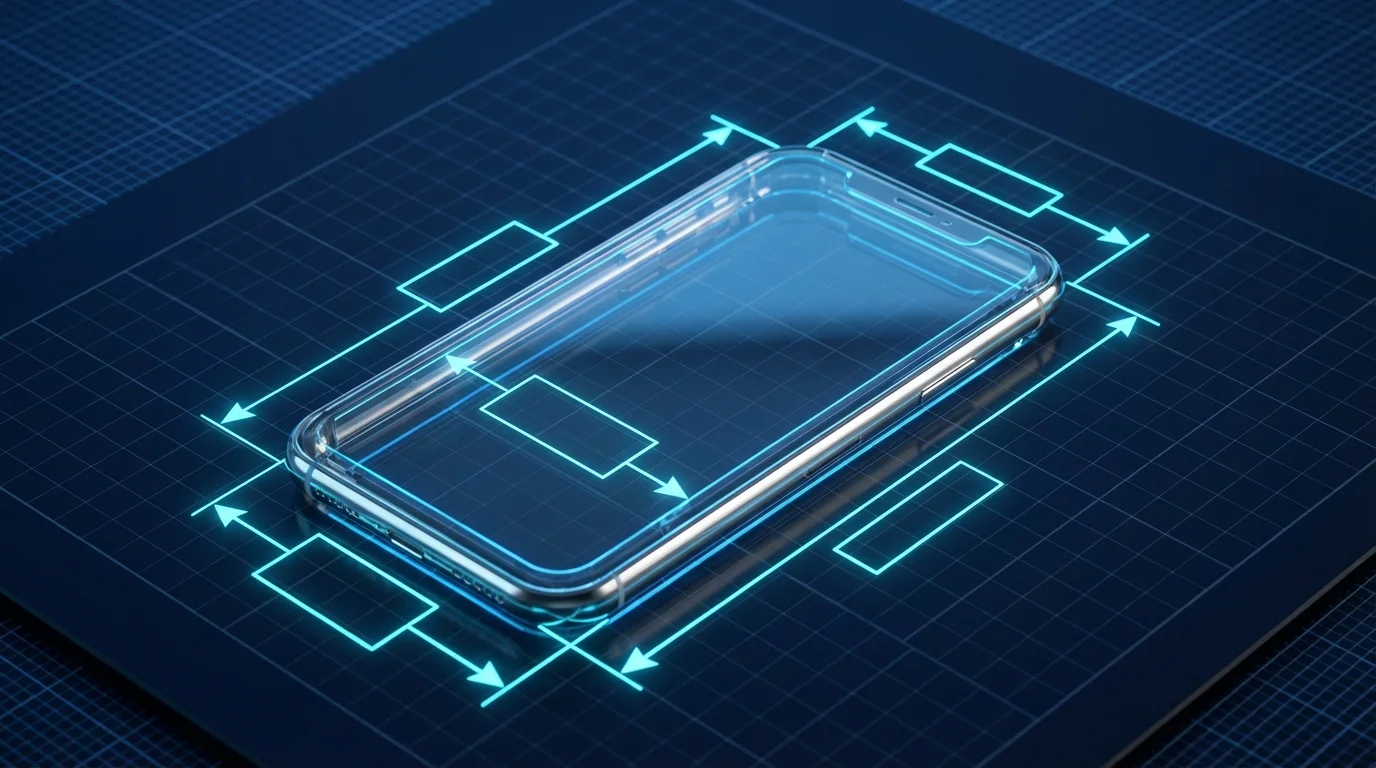
What are the app store screenshot requirements for 2026?
App Store screenshot dimensions in 2026 require exact pixel resolutions matching the latest flagship iPhone models. Any deviation results in immediate asset rejection by Apple's automated validation servers.
According to Apple's screenshot specifications, the required resolutions include: 1260 x 2736 pixels for the 6.9-inch display (iPhone 16 Pro Max / iPhone 17 Pro Max), 1284 x 2778 pixels for the 6.5-inch display, and 1179 x 2556 pixels for the 6.3-inch display. iPad 13-inch requires 2064 x 2752 pixels. All files must be PNG or JPEG, flattened RGB with no alpha channels, and under 8 MB each.
Automating dimension compliance is best handled by integrating resolution validation directly into your CI pipeline. Tools like ImageMagick or Sharp can resize and validate output images before the deliver step uploads them to App Store Connect, catching dimension mismatches before they trigger rejection.
Frequently Asked Questions
How often should I update my App Store screenshots?
You should update screenshots whenever you release major feature changes or UI overhauls. Best practices recommend refreshing assets twice a year to maintain optimal conversion rates and reflect OS design standards.
Do I need an iPad Pro screenshot if my app is iPhone only?
No. Apple only requires iPad screenshots if your application includes an explicit iPadOS target. If strictly an iPhone target, you only need 6.9-inch and 6.5-inch assets.
What is the maximum file size for App Store screenshots?
Apple restricts individual file sizes to a maximum of 8 MB per image. Files must be flattened RGB, formatted as PNG or JPEG, and contain no transparency. If automation generates oversized files, integrate tools like ImageMagick into your pipeline to compress assets before uploading.
Can I use the same screenshots for iOS and Android?
You cannot use identical files. Apple and Google require entirely different pixel dimensions and aspect ratios, and both prohibit displaying competing hardware.
Sources
- Apple App Store Product Page — Official guidelines on screenshots and product page best practices.
- Apple Screenshot Specifications — Official 2026 pixel dimension requirements for App Store Connect submission.
- Fastlane snapshot — Documentation for automated iOS screenshot capture.
- Fastlane screengrab — Documentation for automated Android screenshot capture.
- Google Play Console Help — Official documentation on store listing localization and graphic assets.
- StoreManager — Chrome extension for automating App Store Connect localization and PPP-based pricing.